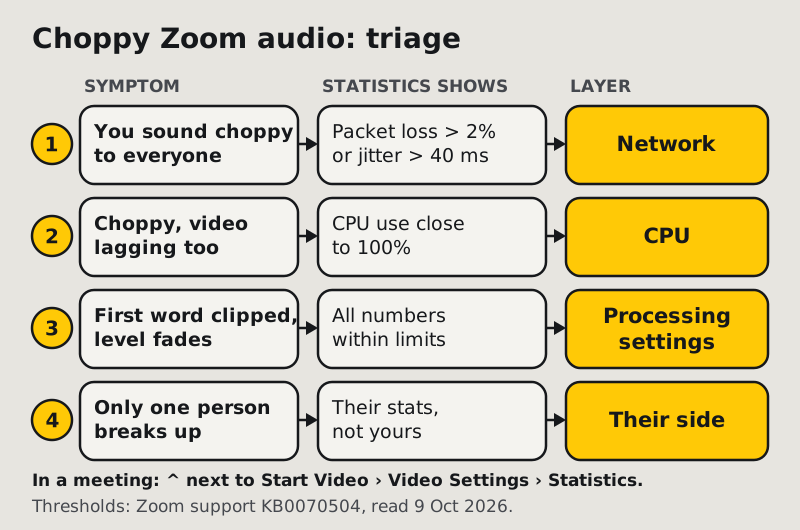
When Zoom audio cuts out or turns choppy, the cause is almost always one of three things: your network is dropping packets, your computer's processor is maxed out, or Zoom's own audio processing is gating your voice. Zoom's Statistics panel tells you which in under a minute. Packet loss above 2% or jitter above 40 ms points to the network, CPU use near 100% points to the computer, and clean numbers with clipped words point to a setting. Those thresholds are the typical recommendations in Zoom's statistics article (stated in its Zoom Phone section), read on 9 Oct 2026. If there's no sound at all, rather than sound that breaks up, start with our guide to Zoom audio not working, because that is a different fault.
Is it you or them? The 30-second check
Before you touch anything, find out where the break happens. Choppy audio is heard by other people, so your own ears are a poor judge of whether you are the one breaking up.
- Ask out loud: "Is everyone breaking up, or just one person?"
- If one person sounds choppy to everyone, the fault is on that person's side. The rest of this guide is for them to work through, not you.
- If everyone sounds choppy to you, while others hear each other fine, the problem is your download side: your network or your computer.
- If you sound choppy to everyone, it's your upload side, your CPU or your audio processing.
Then open the evidence. In a meeting, click the up arrow next to Start Video or Stop Video, choose Video Settings, then Statistics. Outside a meeting it's your profile picture → Settings → Statistics. The panel lists latency, jitter and packet loss for audio, video and screen sharing; the audio figures are the ones that matter here. Keep it open while the problem happens. A snapshot taken after the call is fine again tells you nothing.
Network: Wi-Fi, VPN and upload bandwidth
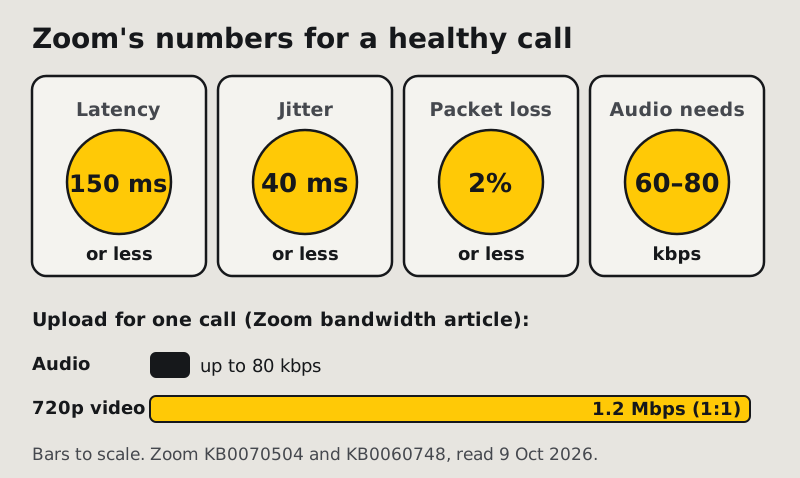
Network trouble is the usual suspect when Zoom audio breaks up, and the Statistics panel shows it plainly. Zoom's statistics article (in its Zoom Phone section) says a latency of 150 ms or less, jitter of 40 ms or less and packet loss of 2% or less are "typically" recommended. Audio is the cheap part of a call: Zoom's bandwidth article puts VoIP audio at 60–80 kbps. That is why audio rarely fails because of raw speed. It fails because packets arrive late or don't arrive at all, and a voice stream has no time to wait for them.
Work through the usual suspects in this order:
- Wi-Fi first. Plug in an Ethernet cable for one call if you can. If the packet loss vanishes, the radio link was the problem. If you have no cable, move closer to the router or onto its less crowded band, and stop large downloads or cloud backups on the same network.
- VPN second. A VPN sends every packet through an extra server, which adds latency and can add jitter. If your company allows it, test one call with the VPN off or with Zoom excluded from the tunnel. If the numbers drop back under Zoom's thresholds, ask IT about split tunnelling for Zoom.
- Upload last. Your voice travels on your upload, which is usually the smaller half of a home connection. Video takes far more of it than audio does. Zoom lists 1.2 Mbps up and down for 720p one-to-one video, against 60–80 kbps for audio. Turning your camera off is the quickest way to give your voice room.
If packet loss stays high on a wired connection with nothing else running, the problem is beyond your desk: the router, the provider or the far end. Run the same call from a phone hotspot. If the audio is clean there, you have your answer for your provider.
CPU: what to close, and how to read Zoom's stats
A computer at full load can't encode your voice on time, and the result sounds like a bad network: robotic syllables, gaps, a voice that speeds up to catch up. Check CPU use while the problem is happening, in Zoom's statistics if your app version shows it, otherwise in Windows Task Manager or the Mac's Activity Monitor, and compare Zoom's own share with the total. Read them like this:
- Total near full, Zoom's share small. Something else is eating the processor. Close the browser tabs you don't need, pause sync clients and indexing, and quit any second video app. Screen recorders and virtual-background apps are common culprits.
- Zoom's share close to the total, total high. Zoom itself is working hard. Turn off your video or virtual background, close shared screens, and check your noise suppression level. Zoom notes that High suppression "may increase CPU utilization".
- Both low, audio still choppy. It isn't the CPU. Go back to the network section, or on to processing below.
Laptops add one trap: battery saver. Many laptops slow the processor down when unplugged, and a call that is clean on the charger can break up on battery. Plug in before you blame Zoom.
Processing artefacts: suppression gating and Original sound
If the Statistics panel is clean (low packet loss, steady jitter, CPU with room to spare) and people still say you cut out, look at what Zoom does to your audio before sending it. This is the pattern behind "Zoom audio drops when I stop talking" and "my first word gets cut off".
Background noise suppression set too high. In Settings → Audio → Microphone modes → Noise removal, the suppression dropdown runs Auto, Low, Medium and High. Zoom describes High as its "most aggressive" setting. A filter working that hard can mistake quiet speech or a trailing word for noise. If you set it to High at some point, step down to Auto or Low and ask someone if your sentence endings come back. Our noise suppression settings guide explains each level.
Automatic microphone volume. Zoom's "Automatically adjust microphone volume" setting, in Settings → Audio, raises and lowers your level as you speak. Zoom's own advice is to consider disabling it "if you are experiencing issues with your audio fading in and out". Untick it and set the input slider by hand, so your level holds steady between sentences.
Original sound left on. Original sound for musicians disables all noise suppression. That doesn't cause dropouts by itself, but its high-fidelity sub-option raises the audio codec to 96 kbps mono or 192 kbps stereo, more than the 60–80 kbps Zoom lists for ordinary VoIP audio. On a weak connection, that extra load can tip it into packet loss. If you aren't playing music, switch Microphone modes back to Noise removal. Our Original sound guide shows where to check.
Two apps fighting over the mic. Make sure no other application is using the microphone at the same time. A second call app, a dictation tool or a browser tab with mic access can steal the device mid-sentence.
Edge cases that look like audio cutting out
Bluetooth headsets
When a Bluetooth headset's microphone turns on, many headsets switch to a lower-quality call profile, and a weak Bluetooth link breaks up just like weak Wi-Fi. Test the same call with the laptop's built-in mic. If the choppiness goes, the headset link is the problem. Keep the headset closer to the computer, or use a wired headset for important calls.
It cuts out at exactly 40 minutes
That is the meeting ending, not your audio. Zoom's free Basic plan limits meetings to 40 minutes.
Only on one network, at the same time every day
A shared connection that clogs at a fixed hour, such as school pickup or evening streaming, shows up as packet loss that comes and goes. Record what the Statistics panel says when it happens, so you can show your provider or IT team numbers rather than impressions.
Clean in the audio test, choppy in the meeting
Zoom's built-in mic test runs on your computer, while the meeting adds the network and the other side's processing. A clean pre-join audio test rules out your hardware, not your connection.
Zoom audio cutting out: FAQ
Why does my Zoom audio keep cutting out?
Usually because of packet loss on your network, a processor at full load, or Zoom's noise suppression gating quiet speech. Open Statistics during the call: packet loss over 2% or jitter over 40 ms means network, and CPU use near 100% means your computer. Checked 9 Oct 2026.
Why is my Zoom audio choppy for everyone else but fine for me?
Because you hear your own voice directly, not through Zoom. Choppy outgoing audio comes from your upload or your CPU. Turn off your video to free upload bandwidth, close heavy apps, and check CPU use while the call runs.
How much bandwidth does Zoom audio need?
Zoom lists 60–80 kbps for VoIP audio, which almost any connection has. Dropouts are usually about unstable packets rather than speed. Video needs far more: 1.2 Mbps up and down for 720p in a one-to-one call.
Why does Zoom cut off my first word?
Usually an audio processing setting. Lower background noise suppression from High to Auto or Low, and turn off "Automatically adjust microphone volume" if your level fades in and out. Zoom recommends disabling it in that case.
Can noise cancellation software fix choppy Zoom audio?
No, not if the cause is the network or the CPU. A noise filter can't replace lost packets. It helps when the problem is room noise, or when Zoom's own suppression is clipping your speech and you want a different filter.