Yes, Zoom has voice isolation. It's called personalized audio isolation, and it's a microphone mode that learns your voice and filters out other people talking near you. Turn it on in the desktop app under Settings → Audio → Microphone modes → Personalized audio isolation, accept the consent prompt, and ideally make a voiceprint recording (at least 30 seconds of reading) so it also works with a laptop's built-in mic. Use it if family, flatmates or an open-plan office leak into your calls. Skip it if several people share one microphone, because it is built to keep one voice: yours. Everything below was checked against Zoom's support article "Configuring and using personalized audio isolation" on 9 Oct 2026.
What Zoom's voice isolation is, and what it's called
Zoom's own help article never uses the phrase "voice isolation" as a feature name. The setting is Personalized audio isolation, one of three options under Microphone modes. The other two are Noise removal, the default, and Original sound for musicians. People search for "Zoom voice isolation" because Apple, Krisp and others use that name for the same idea, and because Zoom's article says the voiceprint is used to "further improve voice isolation". Different words, same job: keep your voice, drop everyone else's.
That job is different from what Noise removal does. Noise removal tackles background sound at a level you pick: Auto, Low, Medium or High. At High, Zoom says it is "at its most aggressive" and "will eliminate noise such as background speech from others", but it can't tell which speaker you are. Personalized audio isolation can, because it compares incoming sound against a model of your voice. That makes it the better tool when the background noise is a person rather than a fan. Our noise suppression settings guide covers the levels themselves.
Requirements: which devices and app versions
Zoom lists two tiers. The standard feature works on the desktop app for Windows, macOS and Linux and on the Android and iOS apps, at Zoom's "global minimum version" or later. The improved version, which uses a recorded voiceprint, needs more:
- Desktop app version 6.0.0 or higher on Windows, macOS or Linux.
- On iPhone: Zoom app 6.1.5 or higher, running on an iPhone 11 or newer or a second- or third-generation iPhone SE.
- Not available on Zoom's Common Area devices or on older devices that don't support it.
Zoom's article lists app versions and devices but no account or plan requirement. We found no statement that it is limited to paid plans.
How to turn it on (desktop and mobile)
On the desktop app:
- Click your profile picture, then Settings.
- Open the Audio tab.
- Under Microphone modes, select Personalized audio isolation.
- Read and accept the consent prompt, which explains that Zoom will generate a voiceprint automatically in a future meeting.
On iPhone or Android, the setting lives in the app's Settings → Audio, under the microphone mode options (Zoom's articles label this list both "Microphone modes" and "Audio Profile"). You can also switch modes during a meeting: on desktop, click the up arrow next to the Audio button and open Microphone modes. Zoom keeps whichever mode you pick for later meetings too, so it doesn't reset when the call ends.
Setting up the voiceprint (and why it's worth the 30 seconds)
Personalized audio isolation works in two ways, and the difference matters if you don't use a headset.
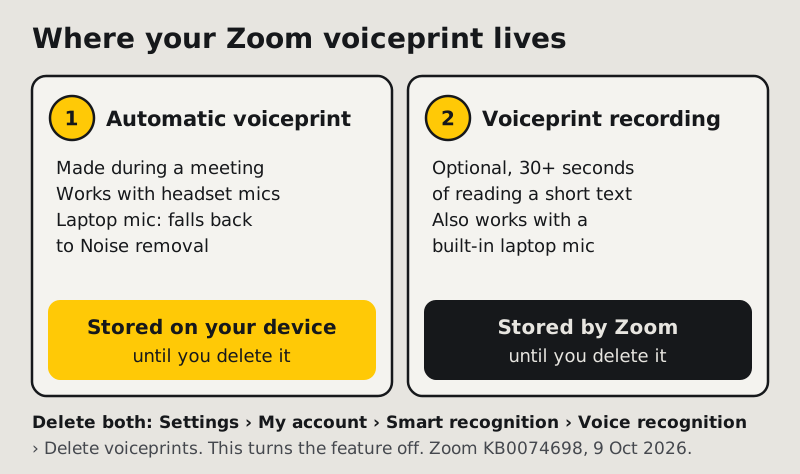
Without a recording, Zoom builds an automatic voiceprint during a meeting. In this form, Zoom says, the feature helps only with a headset microphone. When Zoom spots a non-headset mic and no recording exists, "standard Zoom background noise removal will automatically be used". In other words, on a laptop's built-in mic without a recording, you are silently back on Noise removal.
With a recording, the feature also works with "a non-headset mic, such as a built-in laptop mic". To make one on desktop:
- Go to Settings → My account → Smart recognition → Voice recognition.
- Choose Create voice recording and accept the consent prompt.
- Read the brief text Zoom shows you, speaking "as you normally would in terms of tone, speed, and loudness for at least 30 seconds".
- Do it somewhere quiet. Zoom asks you to reduce or remove sources of background noise before you record.
Zoom also supports the recording in its iOS app (version 6.1.5 or later, on the iPhones listed above); look for it in the app's audio settings. Record at the distance you normally sit from the mic. A voiceprint recorded leaning into the laptop won't match the way you sound from a desk chair.
Where the voiceprint lives (privacy, per Zoom's docs)
This is the part Zoom's settings screen doesn't explain, and it is the question most people have before they agree to the consent prompt. Zoom's support article draws a clear line between the two kinds of voiceprint:
- The automatic voiceprint "will be stored locally on the user's device until they delete it". Zoom describes it as kept on your computer or phone.
- The voiceprint recording "will be stored by Zoom until the user deletes it, which they can do at any time in their audio settings". So the reference recording is held by Zoom, not only on your device.
To delete them on desktop, go to Settings → My account → Smart recognition → Voice recognition → Delete voiceprints, and confirm. Zoom notes that deleting turns personalized audio isolation off, and that you need a new voiceprint recording to switch it back on.
If your company restricts biometric data, ask before recording a voiceprint. The automatic, on-device version is the more conservative choice, but on a laptop mic it falls back to standard noise removal, as described above.
Zoom isolation vs Mac Voice Isolation: don't stack them
Macs have their own voice filter. Apple's Mic Modes live in the menu bar: while an app that supports them is open (FaceTime is the example Apple gives), click Video, then Mic Mode, then Standard, Voice Isolation or Wide Spectrum. Apple says "options vary by app", and it doesn't list which third-party apps support Mic Modes, so check whether the menu appears while you're in a Zoom meeting. On iPhone with iOS 27, Voice Isolation is reached from Control Center, through the button for the app that's using the mic.
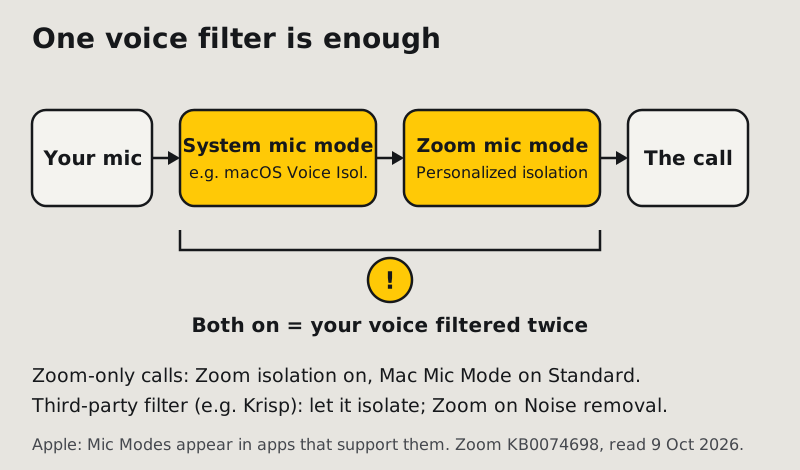
Running both is the mistake to avoid. Each filter removes what it judges isn't your voice. Put two in a row and the second one works on audio the first has already thinned, so any error, such as a clipped word ending or a softened consonant, is processed again. When the result sounds odd you also can't tell which filter caused it. Pick one:
- Zoom-only calls: use Zoom's personalized audio isolation and set the Mac's Mic Mode to Standard.
- Mixed apps on a Mac: if you live in FaceTime and Zoom both, the Mac's Voice Isolation in apps that support it and Zoom's Noise removal at Auto is a simpler pair.
- A third-party filter such as Krisp: let it do the isolating. Select Krisp Microphone as Zoom's input and keep Zoom on Noise removal at a low level, so Zoom doesn't stack a second voice filter on top.
When it cuts your own voice
The feature decides what counts as your voice, and sometimes it's wrong. Typical signs and fixes:
- Your first words after a pause disappear. Re-record the voiceprint in your usual position and at your usual volume. A sample recorded while whispering, or with a fan running, will miss your normal voice.
- You sound fine on a headset and patchy on the laptop mic. You probably have no recording, so Zoom fell back to standard noise removal on the built-in mic. Make the voiceprint recording.
- Your voice changes a lot (a cold, a different language, singing). Switch to Noise removal for that call. For music, Original sound for musicians is the right mode, not isolation.
- Two people share one laptop. Isolation keeps the enrolled voice, so the second person will be filtered. Use Noise removal, or give the second person their own device and headset.
Edge cases worth knowing
Zoom on iPhone: is noise removal "High" there?
No. Zoom's mobile app has no Low, Medium or High levels. Its default Noise removal adjusts on its own. If background speech is the problem on an iPhone, the options are personalized audio isolation (with the voiceprint recording on supported iPhones) or the phone's own Voice Isolation from Control Center.
Meeting rooms and Zoom Rooms
Common Area devices can't use personalized audio isolation, according to Zoom. A room where several people talk to one microphone needs a mic set up for groups rather than a one-voice filter.
It worked yesterday and not today
Check which mode is selected in the in-meeting Microphone modes menu, since the last choice carries over. Then check whether your input device changed. A Bluetooth headset that connected overnight, for example, can swap your mic from the laptop to the headset. If the problem is people nearby and not your settings, our background voices fixes cover distance and mic placement.
Zoom personalized audio isolation: FAQ
Does Zoom have voice isolation?
Yes. Zoom calls it personalized audio isolation, a microphone mode in Settings → Audio → Microphone modes. It learns your voice and filters out other people talking near you. With a voiceprint recording (at least 30 seconds of reading), it also works on a laptop's built-in mic. Checked 9 Oct 2026.
What is voice isolation on Zoom?
It's a mode that keeps the enrolled speaker's voice and removes background voices, unlike Noise removal, which reduces background sound without knowing which voice is yours. Without a voiceprint recording, Zoom uses it only with headset mics.
Where does Zoom store my voiceprint?
The automatic voiceprint stays on your device until you delete it. If you make the optional voiceprint recording, Zoom stores that recording until you delete it, which you can do any time in Settings → My account → Smart recognition → Voice recognition.
Is Zoom's personalized audio isolation free?
Zoom's requirements list app versions and devices but no paid plan. The improved version with a voiceprint recording needs desktop app 6.0.0 or later, or iOS app 6.1.5 or later on an iPhone 11 or newer, or an iPhone SE (2nd or 3rd generation).
Should I use Zoom's isolation and Mac Voice Isolation together?
No. Use one voice filter at a time. Two in a row process your voice twice and make problems hard to trace. On Zoom-only calls, use Zoom's personalized audio isolation and leave the Mac's Mic Mode on Standard.